- Начало работы
- Видеоуроки
- База знаний
- FAQ и решение ошибок
Get Started with Inventory Management
I. Basic Inventory Concepts
- Item (Physical Commodity): Refers to the actual physical goods stored in the warehouse.
- Item SKU / Warehouse SKU: The unique identifier used to distinguish different items within the warehouse.
- SPU (Standard Product Unit): Refers broadly to a specific product model or category. (Example: For the iPhone 14, which comes in black and red, the SPU is "iPhone 14". The corresponding SKUs would be "iPhone 14 Black" and "iPhone 14 Red".)
- Product (Platform Listing): Refers to the online product listed on the e-commerce platform/store.
- Product SKU / Store SKU: Refers to the SKU of the online product on the platform. The same product may have different Store SKUs across various stores.
- Mapping Relationship: Refers to establishing a link between the platform Product and the warehouse Item. The purpose is to allow the system to identify the actual warehouse Item through this order product mapping, thereby successfully allocating and deducting the physical warehouse inventory count.
II. Quick Steps for Inventory Setup
Step 1: Create Inventory Items (The system currently supports two creation methods)
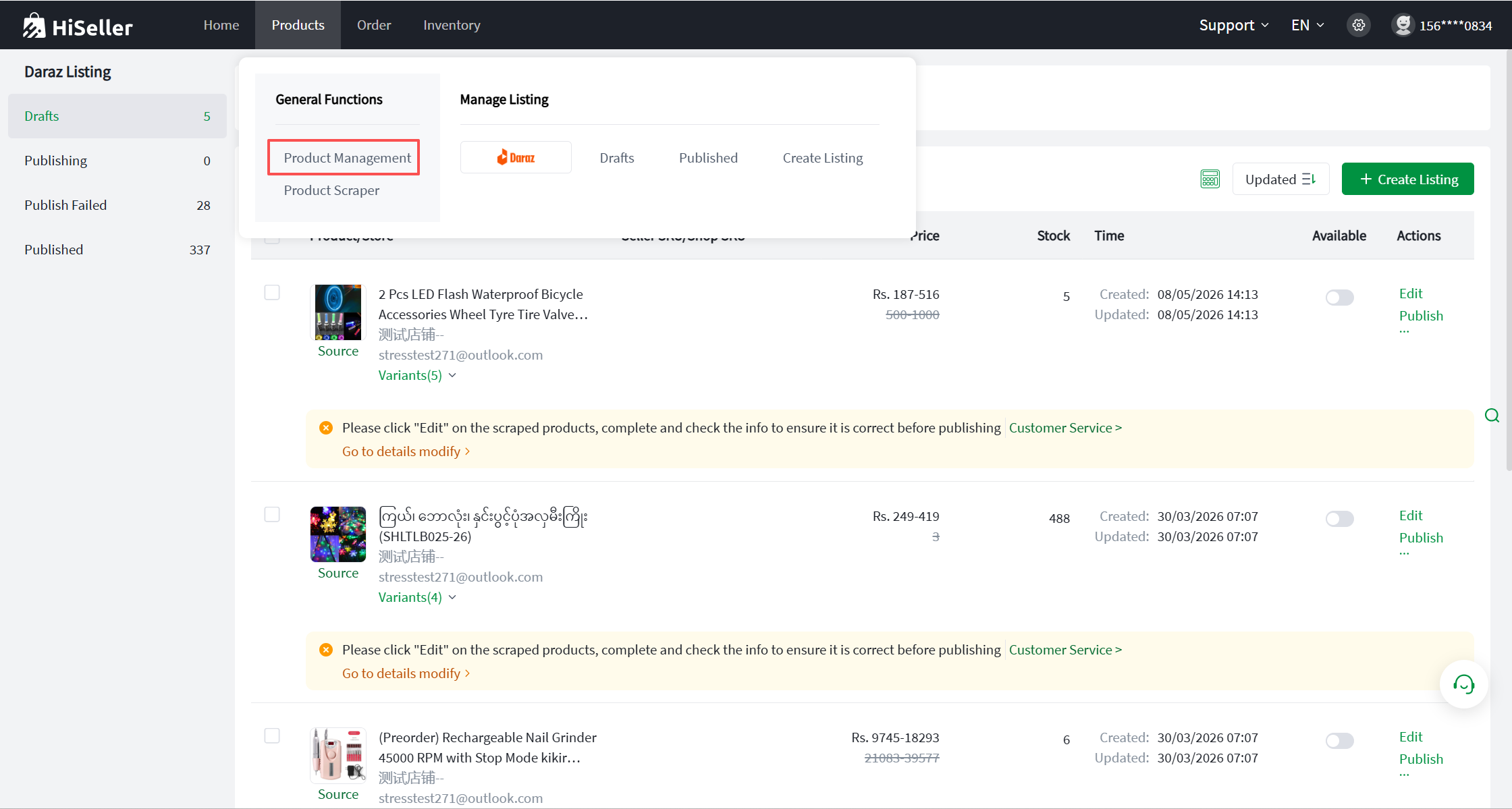
Click on "Items" to enter Item Management.
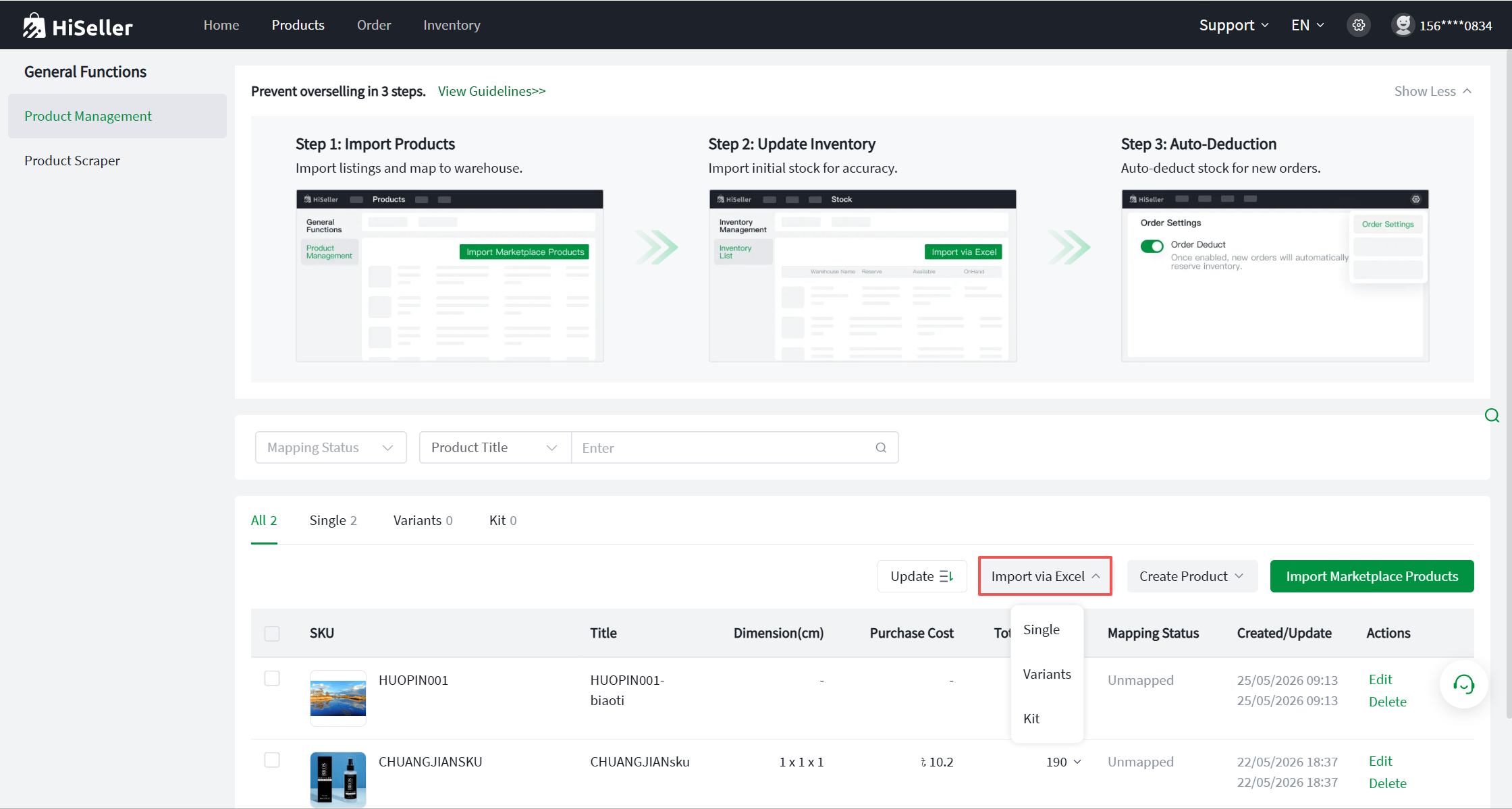
- Method 1: Manual Creation
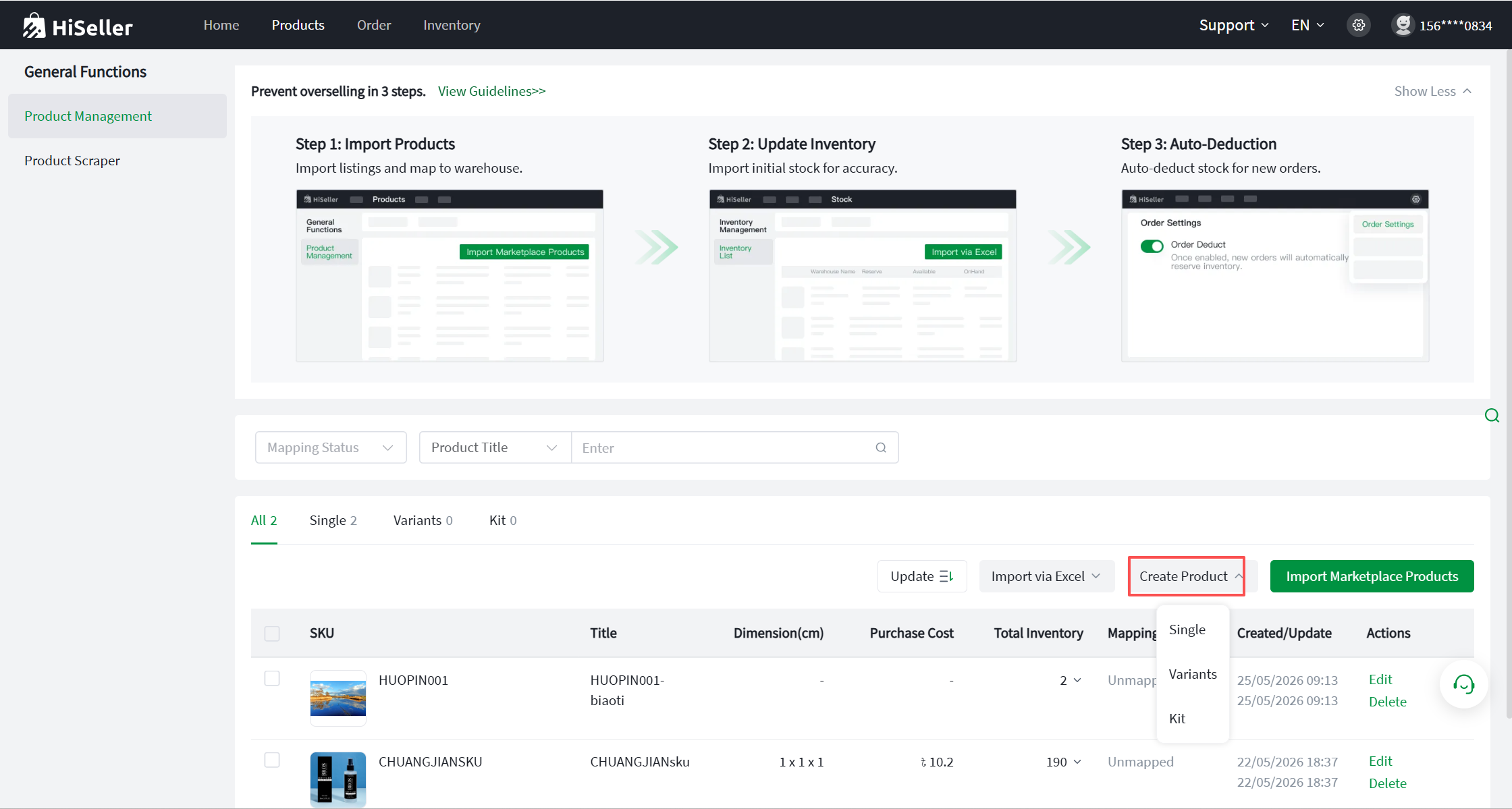
- Method 2: Create via Excel Import
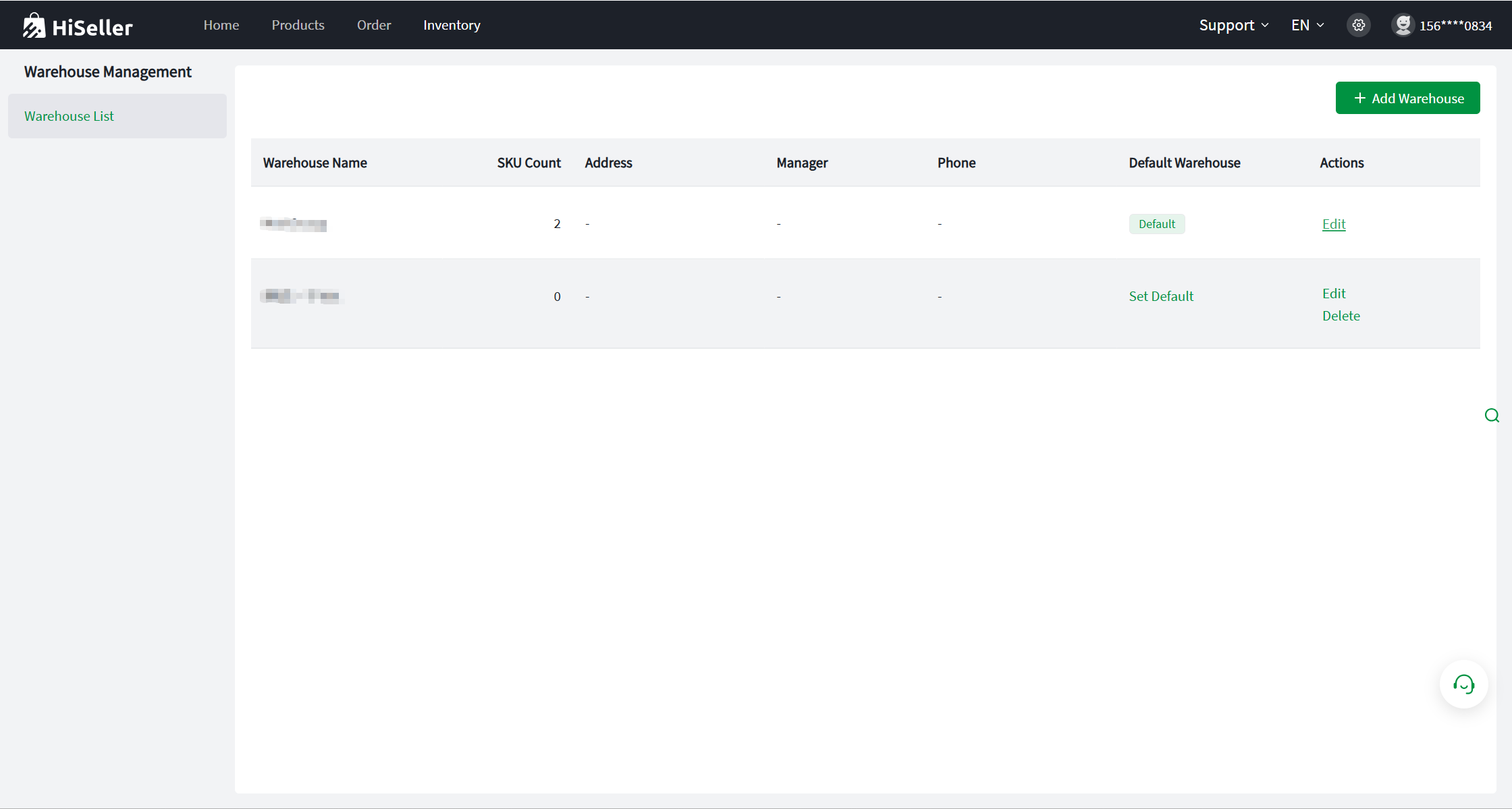
Step 2: Warehouse and Inventory Management
- Click on "Inventory" to enter Warehouse Management > Warehouse List. Select and confirm your default warehouse. This warehouse will serve as the primary fulfillment warehouse for your orders.
- Click on "Inventory" to enter Inventory Management > Inventory List, and import your inventory list.
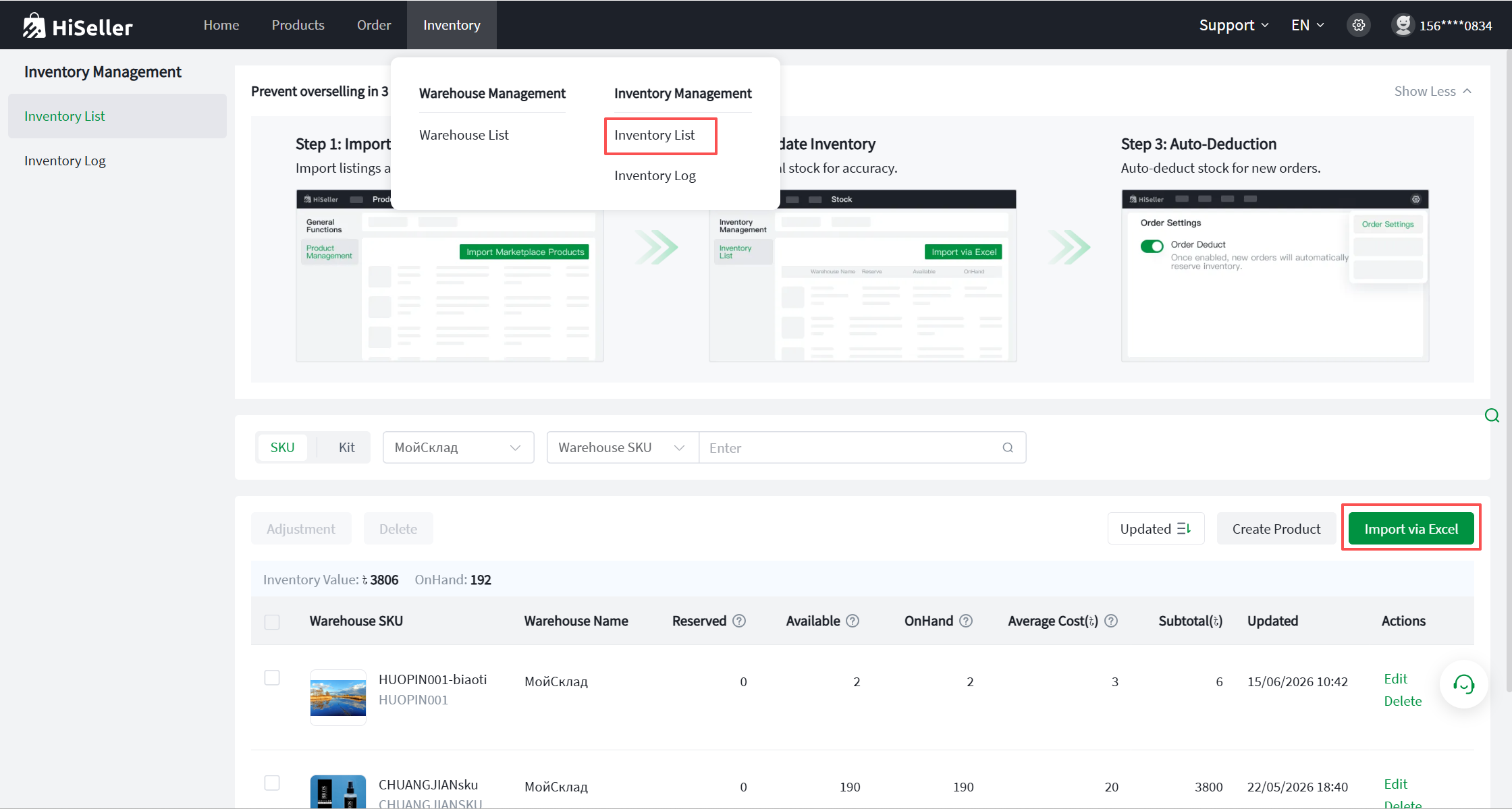
Completing the above steps means the basic inventory management setup is done.
Step 3: Enable Inventory Deduction
Click on "Settings" > "Order Settings" > "Enable Inventory Deduction".
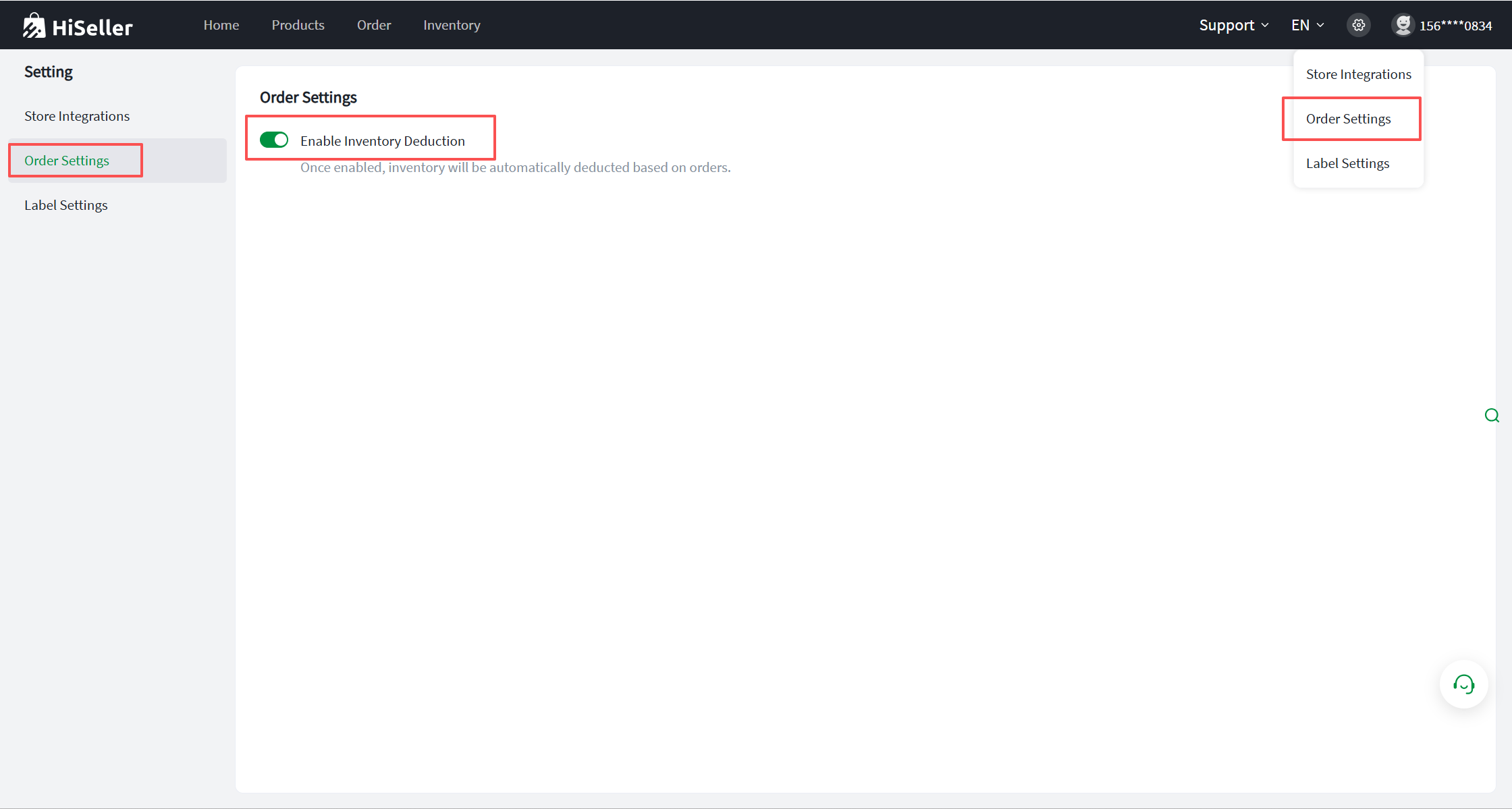
- Once inventory deduction is enabled in the system and mapping relationships are established, incoming orders synced to the system will allocate inventory based on your selected deduction settings. The actual stock deduction will occur when the order status reaches "Pending Pickup".
Completing these three steps officially activates the inventory feature.
Step 4: Allocate/Deduct Inventory and Process Orders
- Inventory allocation requires two conditions to be met for successful reservation.
- After enabling the inventory deduction setting, new orders synced to the system will display the following HiSeller statuses:
Under the "Pending Review" status, orders are categorized into two sub-statuses: "Unmapped" and "Out of Stock".
- Unmapped: After the order is synced to the system, if the order product has no mapping relationship with a warehouse item, it will show as "Unmapped".
- Out of Stock: After the order is synced to the system, if the order product is mapped to an item but there is insufficient stock for that item in the fulfillment warehouse, it will show as "Out of Stock".
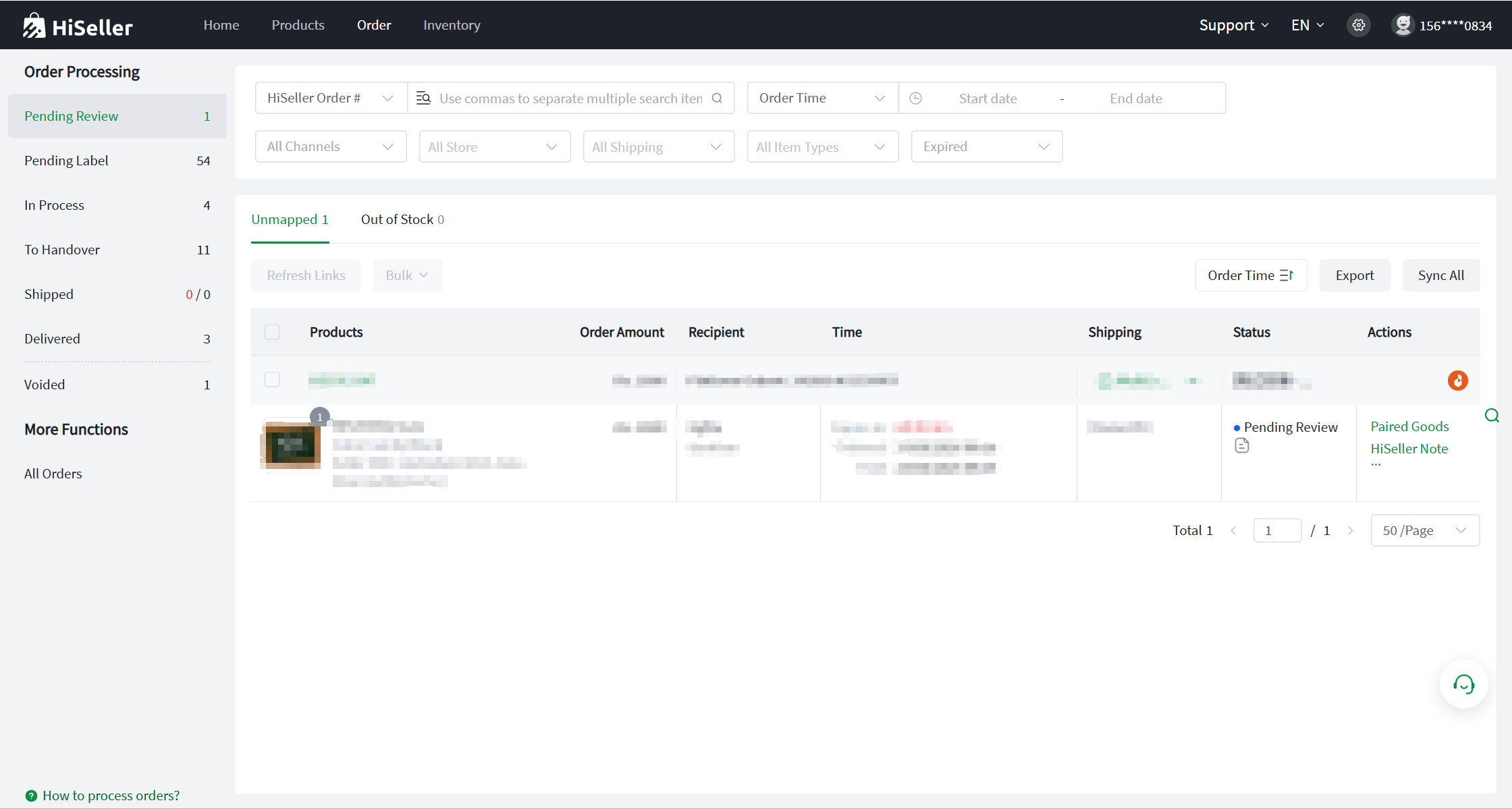
Once you map the unmapped items and process the orders in HiSeller, the order status will change to "Pending Label", and the system will automatically deduct the inventory. All stock movement and changes can be monitored in the "Inventory Log".