- Начало работы
- Видеоуроки
- База знаний
- FAQ и решение ошибок
Product Creation Method 3: Generate Warehouse Items from Online listing
I. Definition
HiSeller supports generating warehouse items directly from your online platform products and mapping them automatically. This facilitates the rapid creation of an item list so you can start using the inventory features immediately.
If you already have active listings on your Seller Center platforms, you do not need to manually recreate these local items in the system. Through the "Import Platform Products" feature, the system will automatically sync your online product data from the store and achieve precise mapping between the Platform Product SKU and the Warehouse Item SKU.
II. Operating Steps
Go to Products > Product Management > Click [Import Marketplace Products] in the upper right corner.
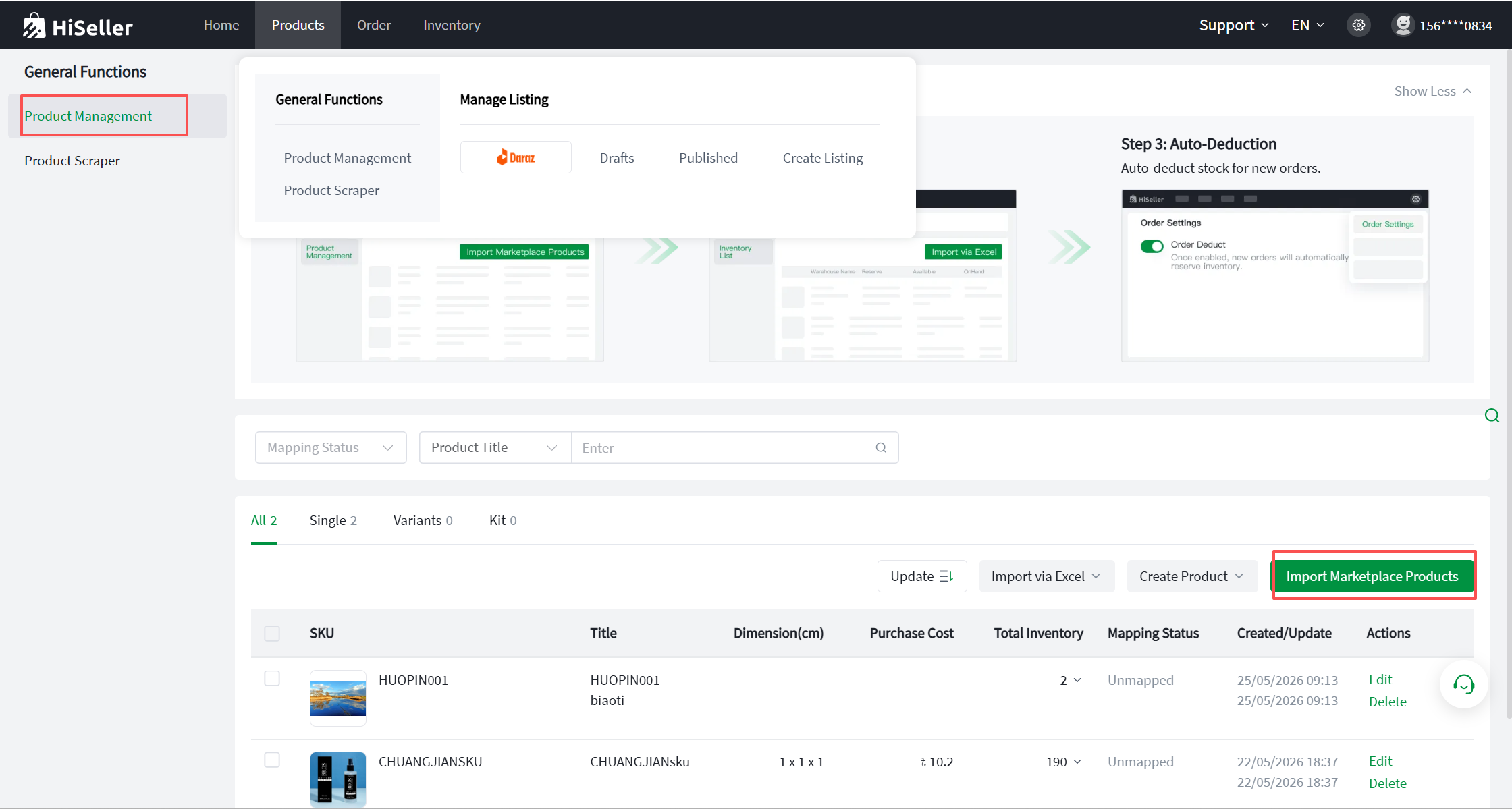
The system provides two import methods, allowing you to choose flexibly based on your actual business scenarios:
Method 1: Import by Product (Precise and controlled, suitable for routine new arrivals or partial management)
Select the "By Product" button.
Filter Target Products: Use the filter conditions at the top to sequentially select the platform and the corresponding store. You can also precisely filter by Mapping Status (to find products that have not yet established an Item SKU) and Status (e.g., viewing only "Active" products). You can also filter based on search keywords.
Select Inbound Warehouse: In the "Import and inbound to" dropdown list, specify which warehouse the generated Item SKUs should be stored in.
Execute Import: Check the specific products you want to import from the list and click the [Import] button at the bottom. The system will automatically generate local item profiles for the selected products.
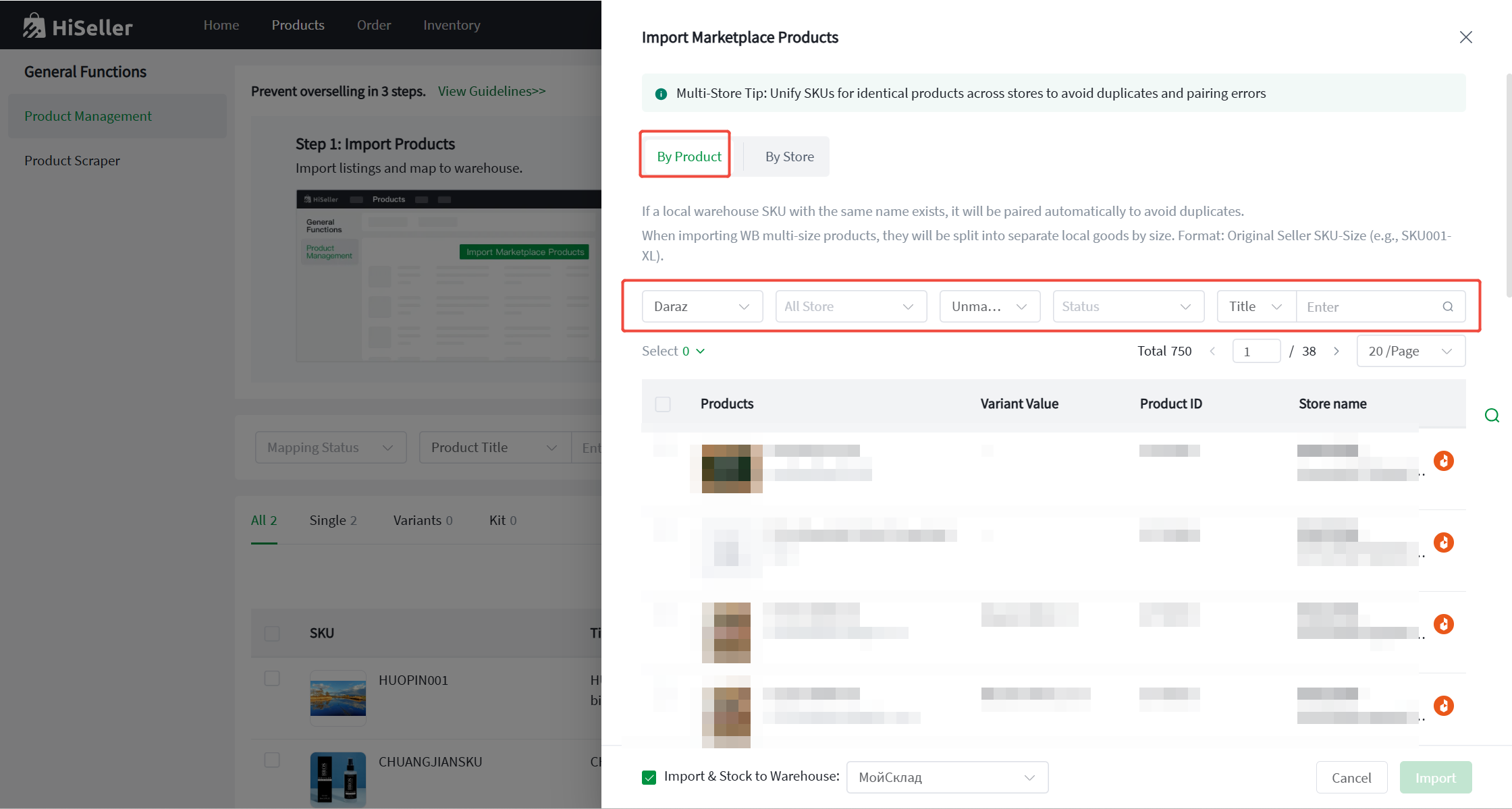
Method 2: Import by Store (Efficient batch processing, suitable for cold-starting a new system)
Select the "By Store" button.
Select Target Store: Directly check the target stores from which you need to pull data for the entire store, and set the status of the products you want to import.
Select Inbound Warehouse: In the "Import and inbound to" dropdown list, specify which warehouse the generated Item SKUs should be stored in.
Execute Import: Check the specific items you want to import from the list, and click the [Import] button at the bottom. The system will automatically generate local item profiles for your selection.
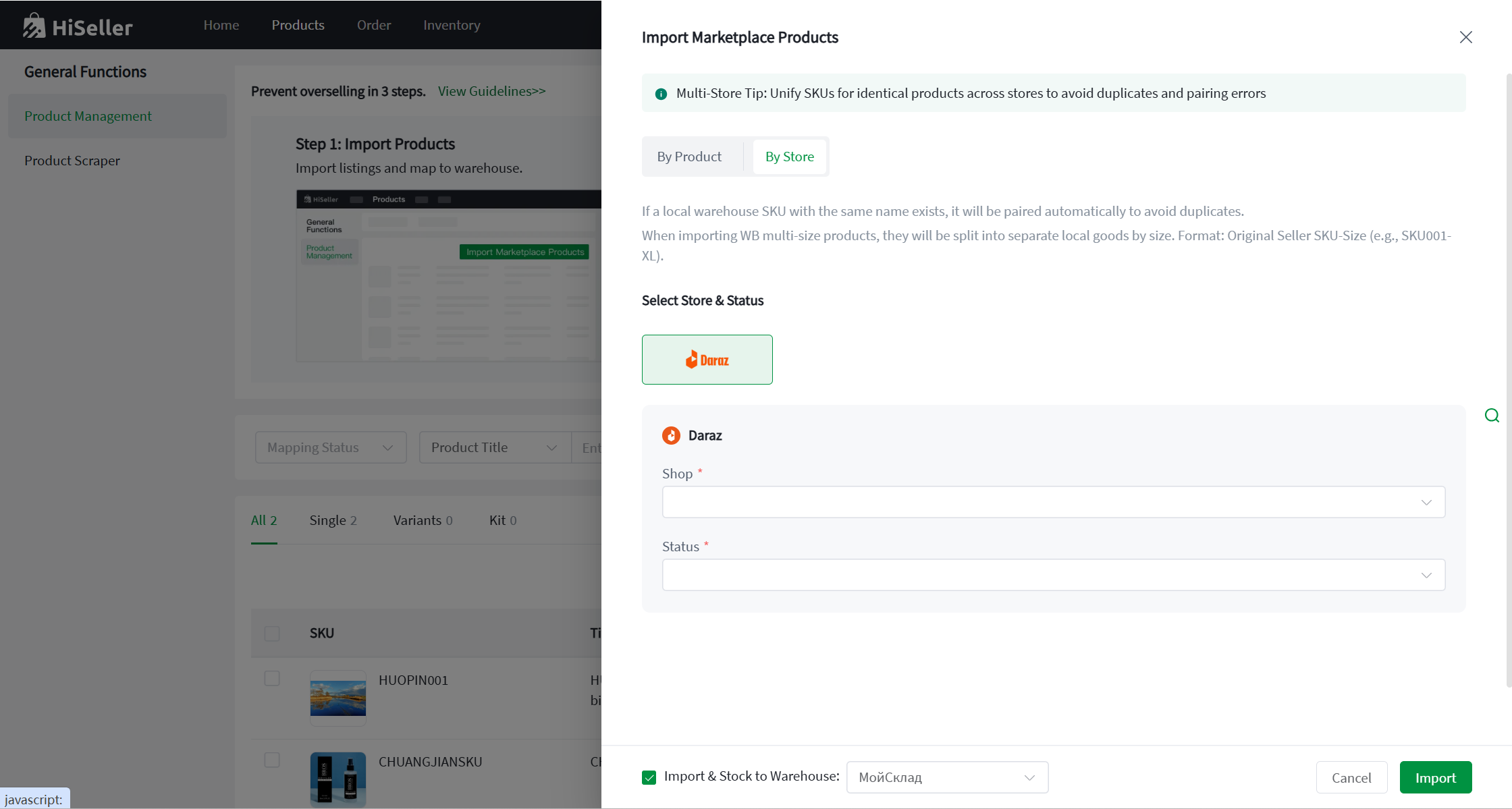
Notes:
Automatic Mapping: Regardless of which method is used, after a successful import, the original Platform Seller SKU will automatically establish a "Mapping" relationship with the newly generated System Warehouse SKU. For any future orders generated for this product, the system will automatically deduct the actual inventory from the warehouse you just selected.
Avoid Duplication: If an online product has already been successfully imported or mapped previously, the system will automatically recognize and skip it. It will not generate duplicate SKUs in the local warehouse, so you can operate with peace of mind.
Regarding WB Product Import: When importing WB (Wildberries) multi-size products, they will be split into independent local items according to their size. Naming convention: Original Seller SKU-Size (e.g., SKU001-XL).